Notes:
- When updating HeavyJob Manager, it is highly recommended to involve HCSS Support (800-444-3196/support@hcss.com) during the process to ensure it is performed thoroughly and that all vital functions are operational upon its completion.
- All users must be out of HeavyJob Manager to properly update the program. It is recommended to not update HeavyJob close to important deadlines (e.g. payroll processing days) to avoid potential interruptions in service.
- When updating HeavyJob Manager, the update process must be performed incrementally up until HeavyJob 2019. For example, a system running HeavyJob Manager 2016 cannot immediately run the HeavyJob Manager 2022 updater. Instead, the HeavyJob 2018 and 2019 updaters must each be run prior to running the 2022 updater. For systems currently running HeavyJob 2019+ it is possible to jump straight to 2022 without incremental updates.
Note: There was no HeavyJob Manager 2017 release.
- If performing a multi-year update (e.g. 2018 to 2019 and then 2022) the workstation installer needs to be run exclusively on the file server between each version update. Once HeavyJob has been updated to the final, desired version on the server, then the user workstations and any terminal servers should run the workstation installer.
- For systems running HeavyJob Manager SQL:
- A reboot will be required during the update as the SQL drivers will be updated as well.
- The Microsoft SQL user who is designated to run HeavyJob must have the following roles:
- db_ddladmin
- db_datareader
- db_datawriter
- If there are foremen using HeavyJob Field Laptops, the Field Laptop systems must be updated to the same version as HeavyJob Manager. Data cannot be exchanged between different versions of HeavyJob Field Laptops and HeavyJob Manager. To automate this process, see: How to Send Automatic Updates to HeavyJob Field.
Update Process
- Download the HeavyJob Update.
- Create a system backup in HeavyJob before proceeding with the update.
Note: The following steps must be performed on the HeavyJob server.
- Verify HeavyJob Manager is closed, all users are logged out prior to running the update, and all HeavyJob files are closed out.
- Ensure HeavyJob Manager launches on the server. If HeavyJob Manager launches successfully from the server, proceed to step 5. If it does not launch successfully or is not installed, run a workstation install by performing steps outlined in How to Install/Update HeavyJob Workstation Client then proceed to step 5.
- Run the HeavyJob Update executable.

- If an Open File - Security Warning prompts, click Run. If the User Account Control Window pops up, click Yes.
- Click Next.
- Select I accept the terms of the license agreement then click Next.
- Select Update to HeavyJob Manager [year] then click Next.
- The update module will ask to confirm that HJTransform, Mobilemport, and DIS (if applicable) scheduled tasks/services are disabled.
- IMPORTANT: Failure to properly disable the corresponding scheduled tasks and services prior to running the update may result in HeavyJob Manager data no longer syncing properly with the Azure Cloud and mobile devices running the HCSS Field app.
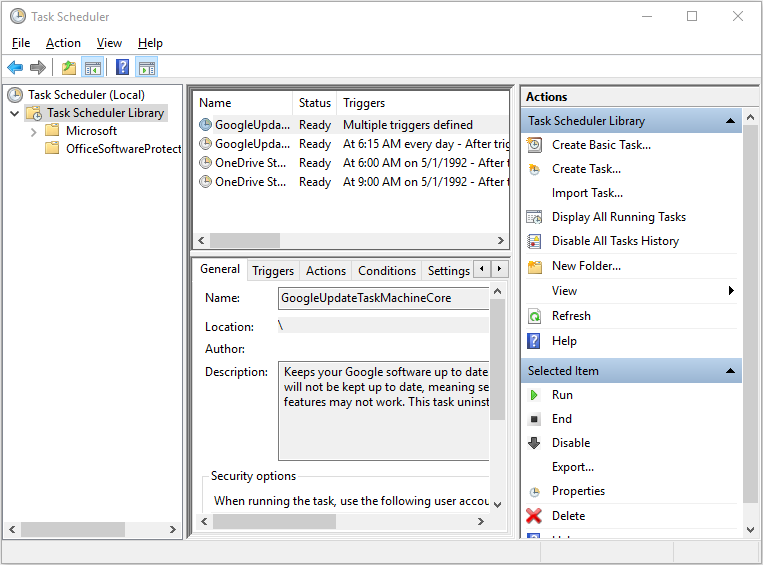
- In the Start Menu, search for and launch Windows Task Scheduler.
- Click Task Scheduler Library in the left menu.
- If HJTRANSFORM, DIS, or Mobileimport are present in the middle pane, right-click on them and select Disable.
- In the Start Menu, search for and launch the Windows Services module.
- Locate and stop the HCSS Core Service (required) and HeavyJob Mobile Import Service (if applicable).
- Note: If the HeavyJob Mobile Import Service is not present in Windows Services, it is likely not installed. If the service is not installed, it is safe to proceed with the update. However, it is recommended to have the service installed to automate the mobile import process. To install the service, contact HCSS Support at 800-444-3196.
- Go back to the update module and click Next.
- Click Next to confirm that the icon for HeavyJob may change.
- Click Next to confirm that all active jobs will be updated.
- Verify the HeavyJob system file path is accurate, then click Next.
- The installation may prompt the user to convert the job files.
Notes:
- Updating from HeavyJob 2019 to HeavyJob 2020 will not have a visible job conversion window and will complete almost instantly.
- If performing multiple updates (e.g. Updating from HeavyJob 2016 to HeavyJob 2022) the job conversion process can be skipped until the last update is performed.
- Run a workstation install on the HeavyJob Application Server. See How to Install/Update HeavyJob Workstation Client.
- Click Finish to complete the system update. If performing multiple version updates sequentially, repeat the update process beginning with step 5 with the next version
Note: Step 17 is only applicable if running HJTRANSFORM.exe as a Scheduled Task. If MISv5 is installed, skips to step 18.
- Update any HeavyJob executables/files to the latest builds. Please reach out to an HCSS Support tech to complete this and some additional steps documented within Internal Notes.
- Re-enable HJTRANSFORM Scheduled Task (if using an older version of MIS than version 5), HCSS Core Service (Windows Service), HeavyJob Mobile Import Service (Windows Service), and DIS Scheduled Task (if applicable).
- Update all HeavyJob Manager Workstations on end-user machines/terminal servers (if applicable) by performing steps outlined in the following article: How to Install/Update HeavyJob Workstation Client.


