| Resolution | How to Backup a Single Job:
- Navigate to Menu > File > Backup > Job.
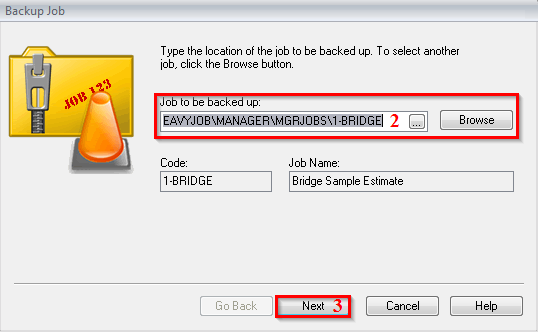
- In the section Job to be backed up, click the 3-dot ellipsis to select the desired job.
- This will default to the currently open job.
- Click Next.
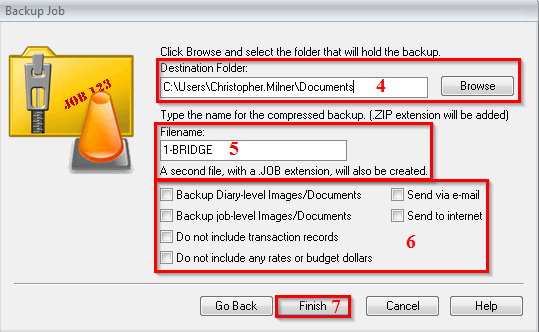
- Confirm the Destination Folder, or click Browse to change it.
- (Optional) Change the Filename of the backup files to be created.
- This will default to the name of the job selected for backup.
- Select which check boxes are appropriate for the backup.
- Click Finish.
How to Backup Multiple Jobs:
- Navigate to Menu > File > Backup > Multiple Jobs.
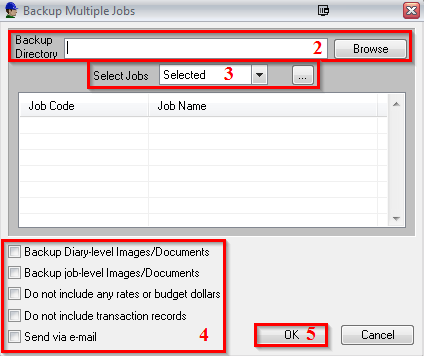
- Click Browse to select the Backup Directory files will be saved to.
- Set Select Jobs to All, Active, or Selected.
- If using Selected, click the 3-dot ellipsis to pick and choose desired jobs to be backed up.
- Select which check boxes are appropriate for the backup.
- Click OK.
 |
|
|---|

