This feature is only available in HeavyBid 2016+ and currently only supports Foundation Accounting System (HeavyBid 2017 now supports Viewpoint)
To access the new Export to Accounting Beta
- Navigate to Exchange > HeavyJob and Accounting BETA
Settings – Select Accounting System, Cost Types, and Defaults
- Click Settings in the bottom left.
- Select the desired accounting system (currently only Foundation is supported).
- Click Configure Export.
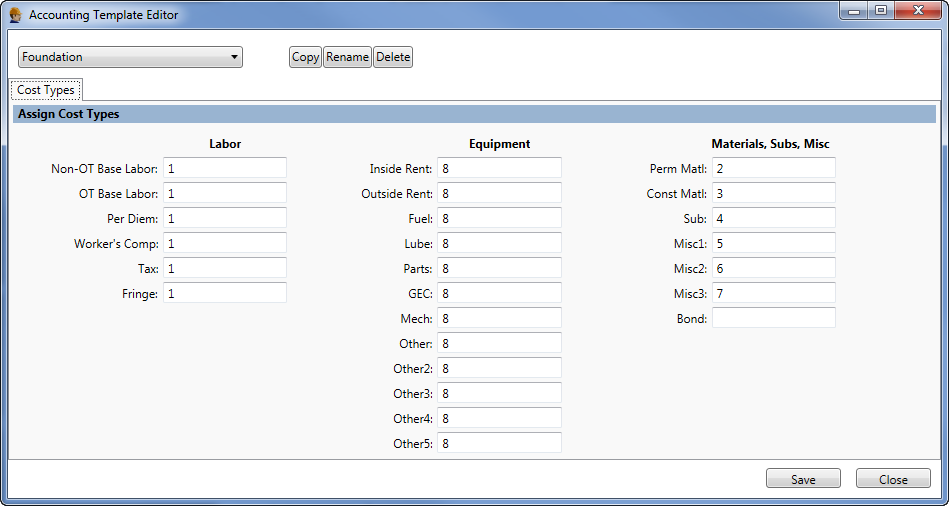
- Assign cost type information and click Save then Close.
- Set any options for Accounting Settings or HeavyJob Setting as necessary and click OK.
 Cost Budget Section
- Assign Cost Codes – Manually assign codes or use a copy option to apply Codes to the desired column. (Cost Code, Phase, HeavyJob Code)
- Extract Resources – Use this screen to extract resources from activities and send them to specific Cost Code/Phase Codes.
- The top section allows for extracting all instances of a resource by resource code.
- Click the Resource Header and choose a resource.
- Manually assign a Cost Code/Phase or use a copy option to apply a Cost Code/Phase Code.
- The lower section allows for extracting a single instance of a resource.
- Click the Biditem/Activity/Resource header and choose a resource.
- Manually assign a Cost Code/Phase or use a copy option to apply a cost code/phase code.
- Extract Addons/Bond/Other Costs – Extract addons, bond, Fuel, and Subs to specific cost codes.
- The top section of this screen allows for sending Addon costs to specific Cost Codes/Phase Codes and Cost Types.
- The lower section allows for extracting other costs to specific cost codes/phase codes.
- Note: Cost Type assignments for this section is done in Settings > Configure Export.
Revenue Section
- Assign Revenue Codes – This screen allows for assigning Revenue codes at the Biditem level. Manually assign revenue codes or use a copy option to apply revenue codes.
Review Section
- Change Accounting Description/Quantity – This feature allows for overriding the default Description, Quantity, or Unit for a specific Cost code/phase code. Select the desired code to override from the list on the left, and then input the override values in the top section.
- Change HeavyJob Description/Quantity – This feature allows for overriding the default Description, Quantity, or Unit for a specific HeavJob code. Select the desired code to override from the list on the left and then input the override values in the top section.
Export Section
- Export to Accounting – Assign a cost code file export path and a Revenue File export path.
- Click the ellipsis
 button to bring up the “save as” dialog box.
 - Set a “Save as Type”, set a filename, set a path for the output file. Click Save.
- When ready, click the Export in the bottom right of the screen to generate the export file(s).

