Note: For SaaS HeavyBid users, see How to Enable Estimate History for SaaS Customers.
Part 1: Enable Estimate History in Credentials
- Log into HCSS Credentials as an Administrator.
- Click Product Setup > HeavyBid > Preferences.
- Select the checkbox for Allow access to Estimate History in HeavyBid (Basic, Advanced, or Comprehensive).
- Click Save.
Part 2: Enter Credentials Within HeavyBid
Notes:
- It is only required to enter either User Credentials or System Credentials, not both. If both are entered, the User Credentials will be used instead of the System Credentials.
- Users will need to enable this from a master estimate if “Only allow changes to system files from Master Estimates” is enabled within File > System.
Part 2a: Enter User Credentials for Estimate History
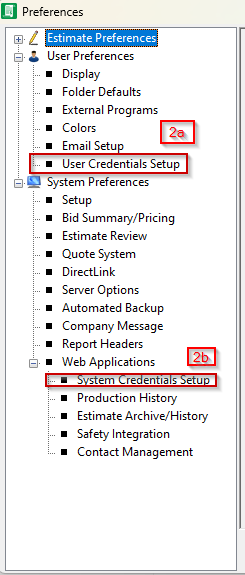
- Within HeavyBid, click Tools > Preferences > User.
- Click User Credentials Setup.
- Enter the username and password in the Credentials Login fields.
- Click OK.
- Click Tools > Miscellaneous Tools > Update HeavyBid License.
- Click OK.
- Close and reopen HeavyBid.
Part 2b: Enter System Credentials for Estimate History
Note: In Enterprise systems, the System Credentials will be shared for all users within a division.
- Within HeavyBid, click Tools > Preferences > System.
- Double-click Web Applications.
- Click System Credentials Setup.
- Enter the username and password in the Credentials Login fields.
- Click OK.
- Click Tools > Miscellaneous Tools > Update HeavyBid License.
- Click OK.
- Close and reopen HeavyBid.
 Part 3: Enable Estimate History in HeavyBid
-
Within HeavyBid, click Tools > Preferences > System.
-
Double-click Web Applications.
-
Click Estimate Archive/History.
-
Select the checkbox for Allow estimate data to be uploaded to Estimate History.
-
Click Me or All Users.
Note: This setting sets the functionality of the Binoculars button in the HeavyBid Estimate Entry - Tree View window.
-
Click OK.

